Stop Reprints: Print Ready PNG vs Vector for Toronto T Shirt Shops
Get printers to accept your T shirt files first time. When to use vector for logos or a high-resolution PNG for photos, plus a short pre send checklist...

Stop Reprints: Print Ready PNG vs Vector for Toronto T Shirt Shops
Use vector files for logos, text, and line art, and a high-resolution PNG for photos and complex full-color designs. The core tradeoff is scalability versus pixel detail: vectors resize without losing quality, while PNGs carry photographic detail that vector paths can’t easily reproduce. Printers still rasterize vector art before output, but the crisp edges survive the process. A checklist later in this piece walks through exactly how to prepare either format before you send it off.
TL;DR:
- Vector files are essential for logos, text, and flat-color designs that need to be scaled across different sizes without losing quality; PNGs are suitable for photographs, gradients, and textured artwork with complex shading.
- A high-resolution PNG used for full-color photos or gradients must support 300 DPI at the intended print size, and color space should match the printer’s requirements, often RGB or CMYK.
- Embedded raster images inside vector files or low-resolution designs require inspection before printing, as the file extension alone does not guarantee scalable vector content.
- Saving files as PDFs for vectors and PNG or TIFF for raster work ensures compatibility with print shops and preserves design details during export.
- Preparing artwork with correct resolution, file type, color space, transparency, and size details can prevent costly reprints and streamline the printing process.
Table of Contents
- What PNG and vector files actually are
- When to use vector versus when PNG works fine
- Export settings printers actually want
- Converting or checking a file when a printer asks for vector
- A print-ready checklist and where to get help
- Why getting the file right actually pays off
- Get your files checked before you print
- Sources
- FAQ
What PNG and vector files actually are
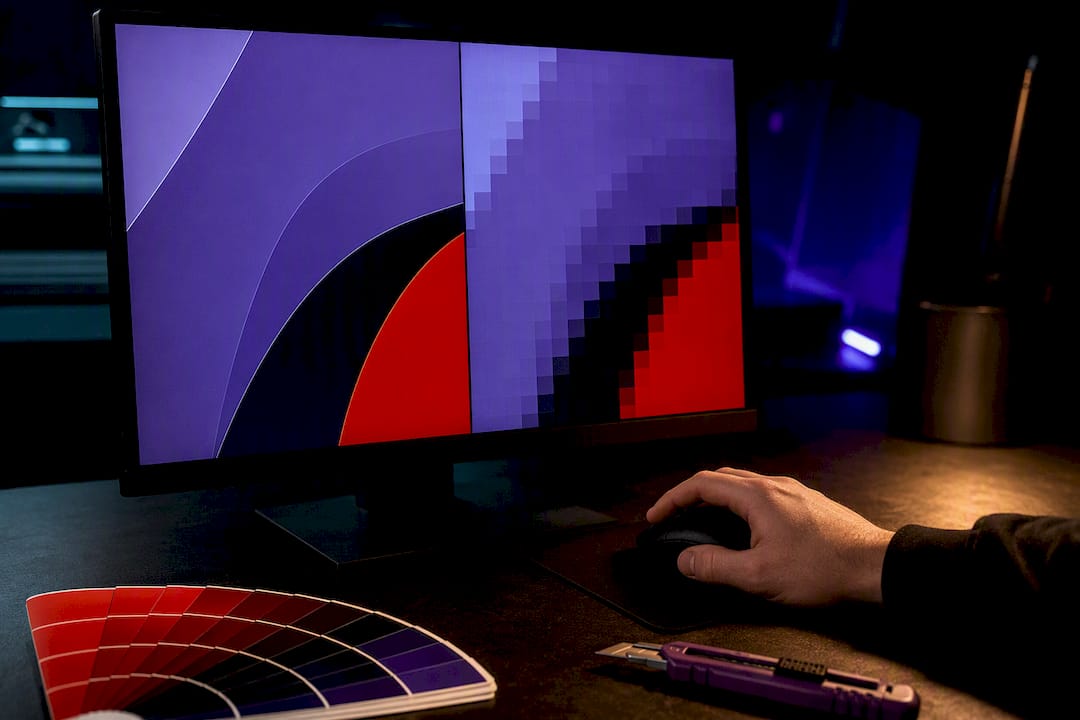
A PNG is a raster image, built from a fixed grid of pixels. It is lossless, supports transparent backgrounds, and can hold roughly 16 million colors, which is why it beats JPEG for anything that needs a clean cutout instead of a rectangular background. That same pixel grid is also its limit: enlarge a PNG past its native resolution and it turns soft or blocky.
Vector files, saved as AI, EPS, PDF, or SVG, store artwork as mathematical paths rather than pixels. Because the shapes are defined by equations, you can scale a logo from a business card to a billboard and the edges stay sharp. This is the main reason vector graphics for shirts work across every garment size and print location without regenerating the file.
One catch: a vector container doesn’t guarantee vector content. A designer can embed a low-resolution PNG inside an AI or PDF file, and the file extension alone won’t tell you.
- PNG: pixel-based, lossless, transparency-friendly, ideal for photos and gradients.
- Vector: path-based, infinitely scalable, ideal for logos, text, and flat-color art.
- Mixed files: a vector file can still contain embedded raster images, so open and inspect before assuming it’s scalable.
PNG supports around 16 million colors with no compression loss, which explains why it handles gradients and photographic shading far better than simpler formats, even though it can’t scale the way vector paths do.
When to use vector versus when PNG works fine
Vector is the right call whenever a design needs to move between sizes or garment spots without redoing the artwork. That covers logos, single-color and flat-color designs, typography, and anything printed as spot colors or separations for screen printing. Adobe’s comparison of PNG and vector makes the same distinction: vectors for scalable brand assets, raster for anything with continuous tone.
PNG earns its place with photographs, gradients, and textured artwork, the kind of detail vector paths struggle to fake convincingly. Direct-to-garment and direct-to-film jobs often run on PNG inputs for exactly this reason. Epson’s documentation for DTG and DTF printers shows transparent PNG files as a standard input for full-color prints on polyester and white-ink setups.
A few edge cases matter too. Embroidery digitizing works best from vector or clean line art, since the machine follows outlines rather than pixels. Sublimation on polyester often calls for PNGs in RGB with specific prep steps, since the process handles color differently than plastisol or DTF ink.
| Format | Best for | Strength | Limit |
|---|---|---|---|
| Vector | Logos, text, flat-color art | Scales to any size without loss | Poor for photos and gradients |
| PNG | Photos, gradients, textured art | Handles detailed color and shading | Loses quality when enlarged |
Export settings printers actually want
Getting the file right the first time saves a reprint. For raster art, 300 DPI at the final print dimensions is the standard target most print shops expect, so check the effective pixel dimensions at your intended size, not just the file’s total resolution. Our own guide to shirt print resolution breaks down how that math works for different print sizes.
Color space trips up a lot of first-time customers. Some shops ask for CMYK because that’s how ink is mixed, but many DTG and DTF workflows accept high-quality RGB just fine. Confirm with whoever’s printing the job before you convert anything, since an unnecessary conversion can shift colors more than it helps.
A short export checklist:
- Save vector text as outlines or embed the fonts, so the file doesn’t reflow on someone else’s machine.
- Flatten or preserve transparency intentionally, depending on whether the printer needs a clean cutout.
- Export vector work as a PDF, since it’s a reliable container that keeps both text and paths intact.
- Export raster work as PNG for transparency or TIFF when a workflow specifically calls for CMYK.
- Double-check pixel dimensions against your intended print size before sending anything.
Pro Tip: Name your export file with the print size baked in, like “logo_4x4in_300dpi.png”, so nobody has to guess later.
Converting or checking a file when a printer asks for vector
Pixelation means it’s raster. If you have design software, open the file in Illustrator or the free tool Inkscape and check whether you can select individual paths or only one flat image layer.
- Try Image Trace in Illustrator for simple logos or line art, then clean up the resulting paths by hand.
- For anything more complex, ask the original designer for the native source file rather than tracing from scratch.
- Skip conversion entirely for photographs or heavily textured art. Adobe notes that tracing photographic detail into vector paths rarely looks right, so send a high-resolution PNG instead.
- Include the intended print size, printing process, and any color notes when you send the file, so the printer isn’t guessing either.
A print-ready checklist and where to get help
Before sending anything to a printer, run through this list:
- File type matches the job: vector for logos and flat art, high-res PNG for photos or gradients.
- You have the native source file, not just a flattened export.
- Resolution hits 300 DPI at the actual print size.
- Color space matches what the printer requested, or you’ve confirmed RGB is fine.
- Transparency is set up correctly if the design needs a clean background.
- Text is outlined or fonts are embedded.
- Intended print size and location on the garment are noted.
- Contact details are attached in case the printer has a question.
Some print shops review submitted artwork before printing and can advise on DTF versus DTG choices for a specific design, alongside fast turnaround and local pickup once a file checks out. Our guide on what to check before ordering covers the same ground in more depth for first-time customers.
Pro Tip: For bulk or gang-sheet orders, name each file with its final print width and height plus color mode, so the layout stage doesn’t mis-scale anything.
Why getting the file right actually pays off
A vector logo built once can print on a hat, a sleeve, and a poster without anyone touching the file again. That’s real time saved, not just a nice-to-have. Sloppy files cause reprints, and reprints cost more than the ten minutes it takes to check your export settings upfront.
That said, perfection isn’t always necessary. A clean, high-resolution PNG is a reasonable compromise for a one-off photo print or a design you’re only using once. Save the vector investment for anything you’ll reuse.
— Toronto
Get your files checked before you print
Not sure if your logo will hold up at full size, or whether your PNG has enough resolution for a back print? Send it our way. Toronto Custom T-Shirts offers free artwork checks alongside DTF gang sheet printing, single-shirt orders, and bulk pricing for teams and events, all with fast turnaround and local pickup.
- Upload your design for a quick file review before you commit to printing.
- Choose DTF gang sheets or individually printed shirts depending on order size.
- Get a bulk quote for team or event orders through our bulk orders page.
Request a free artwork check or a quote today and get a straight answer on whether your file is ready to print.
Sources
For deeper technical reading, see Adobe’s comparisons of PNG vs SVG and raster vs vector, plus Epson’s DTG and DTF documentation and this practical printer-facing explainer on raster resolution. For broader context on file-format choices in custom apparel ordering, this overview of custom print alternatives is a useful supplementary read.
- What is PNG format and when you need it | Adobe (education)
- Raster vs. vector: What are the differences? | Adobe
FAQ
Is PNG okay for t-shirt printing?
Yes, a high-resolution PNG works well for photos, gradients, and detailed full-color designs, especially for DTG and DTF printing. Check that the pixel dimensions support 300 DPI at your intended print size before sending it.
Is PNG or vector better for t-shirt designs?
Neither is universally better since they serve different jobs. Adobe’s comparison recommends vector for logos, text, and scalable designs, and high-resolution PNG for photographs and complex color work.
What is the best image type for t-shirt printing?
It depends on the artwork. Flat-color logos and text print best from vector files because they scale cleanly to any size, while photos and gradient-heavy designs print better from a high-resolution PNG.
Do t-shirt designs need to be vector?
Not always. Vector is preferred for logos and designs reused across multiple sizes or products, but a properly sized, high-resolution PNG is a reasonable choice for one-off photo prints or complex full-color art that vector paths can’t reproduce accurately.
Recommended
Get pricing in 24h.
Toronto-based, no minimums. Tell us about your project and we'll email a detailed quote within one business day.
Request a Quote